Release v1.73.0 – Custom theme
Create, save, share, and apply custom colour themes in Mucklet.
The previous release let realm owners set a colour theme from six seed colours. Since then, Mucklet has gained semantic colour tokens that make the interface more consistent, accessible, and customisable.
Now custom themes are available to everyone.
Features
Custom themes
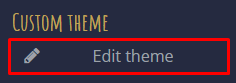
Open Player Settings from the cog menu near logout, then select Edit theme.
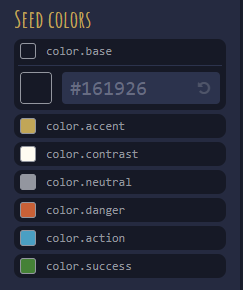
The custom-theme view lists every available colour token. Select a token to set its colour code, and use the preview to see the result before applying it.
Saving, exporting, and importing themes
Use the buttons at the bottom of the editor to save a theme locally, export it to a file, or import a previously exported file. Exporting makes it easy to share a theme or move it between browsers and devices.
Realm themes
Available to: Realm owners
Realm owners can apply an exported custom theme as their realm’s default theme:
- Open Mucklet Account – Realms.
- In the Colour theme section, choose Import theme.
- Select the exported JSON theme file and save the realm settings.
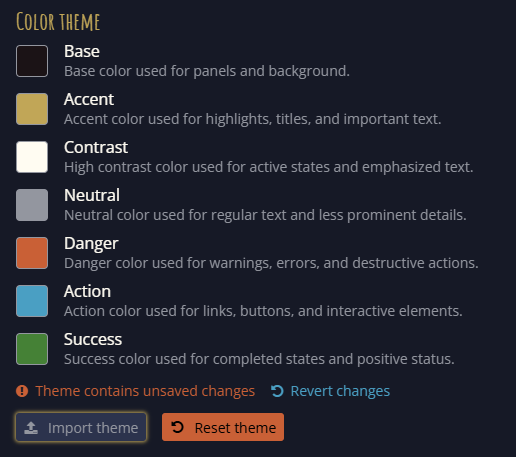
Resetting a realm theme restores the normal seed-colour theme. Realm themes are imported rather than edited directly in the account page, so create and test the theme first in the custom-theme editor.
Theme token inheritance
Mucklet has 243 colour tokens, based on seven seed colours. Tokens inherit colour values through a small hierarchy, so changing one seed can update related interface elements while still allowing precise overrides.
| Token | Inherits from |
|---|---|
color.accent | The accent seed colour |
color.accent.300 | An accent colour variant |
content.accent.fg | Accent content |
badge.title.fg | Badge-title text |
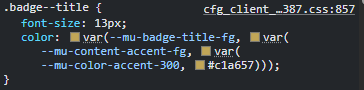
In the editor, token names omit the --mu- prefix and replace hyphens with dots. For example, --mu-content-accent-fg appears as content.accent.fg.
Improvements
UI changes
Unread mail now has a coloured indicator. The same status colour is also used for unassigned reports, help requests, and ownership requests.
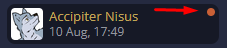
Puppeted characters now display an indicator in character-related views, including Character Select, Awake, and Room Info.



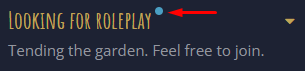
The Looking for Roleplay control has also been refined.
Scrollbar thumbs now use the relevant semantic theme tokens: scrollbar.thumb.bg and simplebar.thumb.bg.
Improved access-token refresh
Access-token refresh behaviour has been improved, resolving a problem that could interrupt a session when a token expired.
PKCE for OAuth 2.0
OAuth 2.0 authentication now uses PKCE, improving the security of the authorisation flow.
Fixes
IPv6 connections translated to an internal IPv4 address
IPv6 connections were previously translated to the same internal IPv4 address. This has been corrected, and the affected stored data has been cleared.
About Character avatars appeared clickable
Avatars shown in About Character no longer show a pointer cursor when they are not interactive.
Navigation exit lists could render incorrectly
When a room had no area map, its navigation exit list could be cropped. Thanks to Kredden, Vernon, and GreenReaper for reporting the issue.
Switching character while editing an exit lost keyword changes
Unsaved exit-keyword changes are now retained correctly when switching character.
Room Info tools did not appear after an ownership change
Room Info tools now appear correctly after ownership changes.